
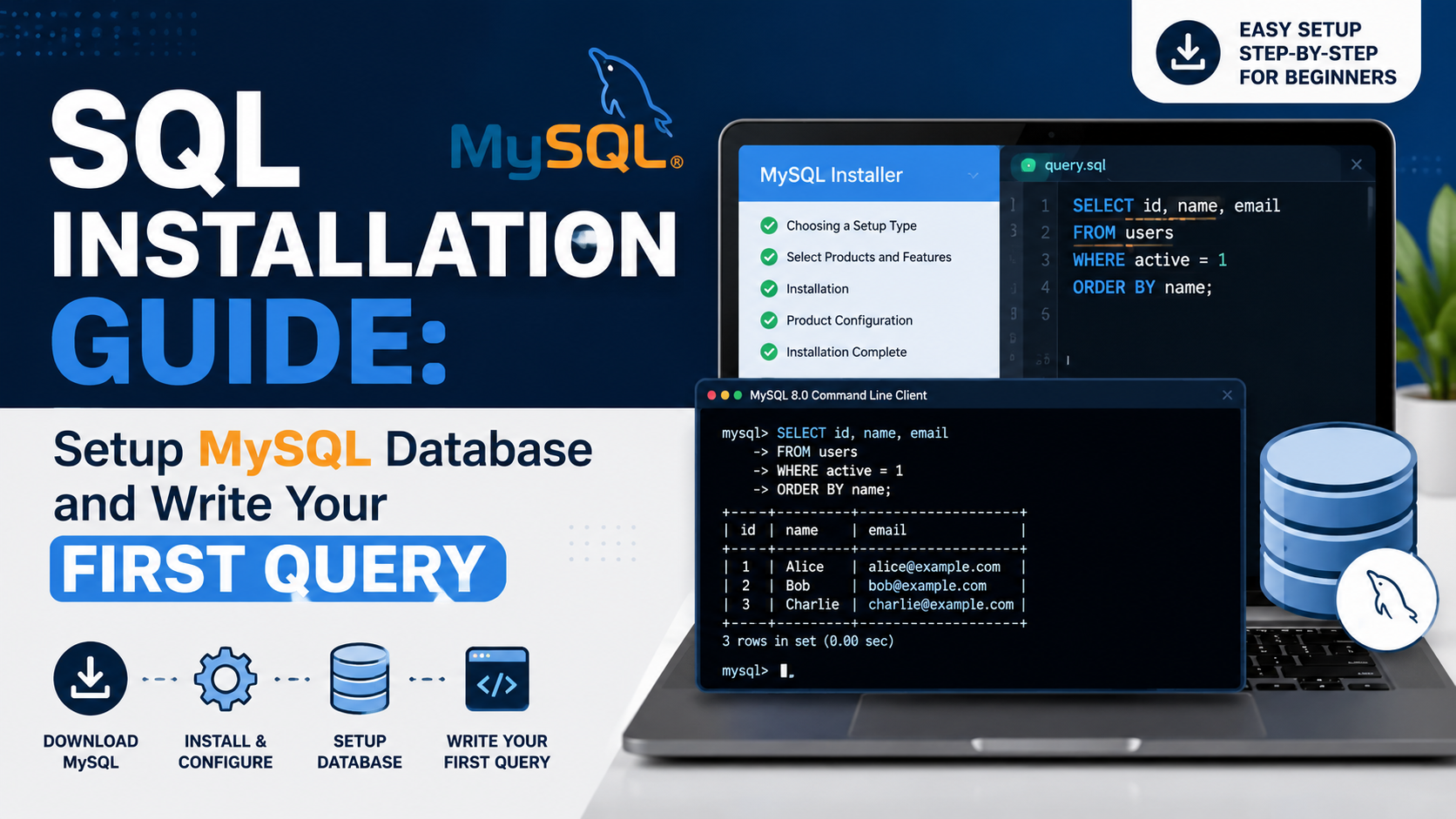
Why MySQL? The Best Starting Point for SQL Beginners
MySQL is the world’s most popular open-source relational database management system — used by Facebook, Twitter, YouTube, Airbnb, and millions of websites worldwide. For SQL beginners in 2026, MySQL is the best starting choice for these reasons:
• Completely free and open-source — no licensing costs
• Largest community of learners and developers globally
• Supported by every web hosting provider in India and worldwide
• Standard SQL syntax that transfers to PostgreSQL, SQL Server, and Oracle
• Excellent documentation and countless tutorials and courses
• Powers most WordPress, Laravel, and Django applications
What You Will Install
Software Purpose Approx. Size Cost
MySQL Server 8.0+ The core database engine that stores, processes, and manages data ~45 MB Free
MySQL Workbench 8.0+ Visual GUI application to write SQL, manage databases, view tables ~30 MB Free
MySQL Shell (Optional) Advanced command-line interface for scripting and automation ~30 MB Free
Installation on Windows (Step-by-Step)
Step 1: Download MySQL Installer
• Open your browser and go to: https://dev.mysql.com/downloads/installer/
• Click ‘Download’ for ‘MySQL Installer for Windows’ — choose the larger offline installer (~400 MB)
• On the download page, click ‘No thanks, just start my download’ — no Oracle account needed
• Wait for the download to complete
Step 2: Run the Installer
• Double-click the downloaded .msi file to launch the MySQL Installer
• Accept the Microsoft Visual C++ Redistributable if prompted
• Accept the license agreement and click Next
• Choose Setup Type: Select ‘Developer Default’ — this installs MySQL Server + Workbench + all tools
• Click ‘Execute’ — the installer downloads and installs all selected components
• Wait for all components to show ‘Complete’ status, then click Next
Step 3: Configure MySQL Server
• Config Type: Select ‘Development Computer’ — uses less memory, ideal for learning
• Connectivity: Keep the default port 3306 — do not change unless you have a conflict
• Authentication Method: Select ‘Use Strong Password Encryption (RECOMMENDED)’
• Root Password: Set a strong password for the root user — WRITE THIS DOWN — you need it forever
• Windows Service: Keep ‘Start MySQL Server at System Startup’ checked
• Click ‘Execute’, wait for all steps to complete, then click Finish
Step 4: Verify Installation in MySQL Workbench
• Open MySQL Workbench from the Windows Start menu
• Under ‘MySQL Connections’, you will see ‘Local instance MySQL80’
• Double-click it — enter your root password when prompted
• Click ‘OK’ — a new query tab opens — you are now connected!
• Type: SELECT VERSION(); and press Ctrl+Enter — you should see your MySQL version
— Test query to verify installation
SELECT VERSION();
— Expected output: 8.x.xx
Installation on macOS
Method 1: Homebrew (Recommended — Fastest)
# Step 1: Install Homebrew (if not already installed)
/bin/bash -c “$(curl -fsSL https://raw.githubusercontent.com/Homebrew/install/HEAD/install.sh)”
# Step 2: Install MySQL
brew install mysql
# Step 3: Start the MySQL service
brew services start mysql
# Step 4: Run the security setup (set root password)
mysql_secure_installation
# Step 5: Connect to MySQL
mysql -u root -p
Enter your password when prompted. You are now in the MySQL command-line interface.
Method 2: DMG Installer (GUI Method)
• Download the macOS DMG from https://dev.mysql.com/downloads/mysql/
• Double-click the .dmg file and follow the installation wizard
• Note the temporary root password shown at the end of installation — copy it immediately
• Add MySQL to your PATH: open Terminal and run:
echo ‘export PATH=$PATH:/usr/local/mysql/bin’ >> ~/.zshrc
source ~/.zshrc
• Download MySQL Workbench separately from https://dev.mysql.com/downloads/workbench/
Installation on Linux (Ubuntu / Debian)
# Step 1: Update package list
sudo apt update
# Step 2: Install MySQL Server
sudo apt install mysql-server -y
# Step 3: Start MySQL service
sudo systemctl start mysql
sudo systemctl enable mysql # Auto-start on boot
# Step 4: Run security configuration
sudo mysql_secure_installation
# Step 5: Connect to MySQL
sudo mysql -u root -p
💡 Linux Tip: On Ubuntu 22.04+, the initial root user uses ‘auth_socket’ authentication. If you get ‘Access denied’, use: sudo mysql (no password). Then run: ALTER USER ‘root’@’localhost’ IDENTIFIED WITH mysql_native_password BY ‘YourPassword’; FLUSH PRIVILEGES;
Create Your First Database
Once connected (in MySQL Workbench or command line), run these commands one by one:
— Create a new database called my_first_db
CREATE DATABASE my_first_db;
— Select (switch to) that database
USE my_first_db;
— Verify you are in the correct database
SELECT DATABASE();
— Output: my_first_db
Create Your First Table
Now create a students table with different column types and constraints:
CREATE TABLE students (
student_id INT PRIMARY KEY AUTO_INCREMENT,
first_name VARCHAR(50) NOT NULL,
last_name VARCHAR(50) NOT NULL,
email VARCHAR(100) UNIQUE,
age INT,
city VARCHAR(50),
created_at TIMESTAMP DEFAULT CURRENT_TIMESTAMP
);
Explanation: INT = integer number | VARCHAR(n) = variable-length text up to n chars | PRIMARY KEY = unique identifier | AUTO_INCREMENT = automatically assigns next number | NOT NULL = value required | UNIQUE = no duplicates allowed | DEFAULT = value used if none provided
Insert Sample Data
INSERT INTO students (first_name, last_name, email, age, city)
VALUES
(‘Priya’, ‘Sharma’, ‘priya@email.com’, 20, ‘Mumbai’),
(‘Rahul’, ‘Verma’, ‘rahul@email.com’, 22, ‘Delhi’),
(‘Sneha’, ‘Patel’, ‘sneha@email.com’, 21, ‘Ahmedabad’),
(‘Arjun’, ‘Singh’, ‘arjun@email.com’, 23, ‘Bengaluru’),
(‘Kavya’, ‘Reddy’, ‘kavya@email.com’, 19, ‘Hyderabad’);
Notice: student_id and created_at are omitted — they fill automatically via AUTO_INCREMENT and DEFAULT.
Write Your First SELECT Queries
Query 1: Retrieve All Data
SELECT * FROM students;
Returns all 5 rows with all 7 columns.
Query 2: Select Specific Columns Only
SELECT first_name, last_name, city FROM students;
Query 3: Filter with WHERE
SELECT first_name, age FROM students WHERE city = ‘Mumbai’;
Query 4: Count Records
SELECT COUNT(*) AS total_students FROM students;
Output: total_students = 5
Query 5: Sort Results
SELECT first_name, age FROM students ORDER BY age DESC;
Query 6: Limit Results
SELECT first_name, city FROM students LIMIT 3;
Useful MySQL Workbench Shortcuts
Action Windows/Linux Shortcut Mac Shortcut
Execute selected query Ctrl + Enter Cmd + Enter
Execute all queries Ctrl + Shift + Enter Cmd + Shift + Enter
Comment/Uncomment line Ctrl + / Cmd + /
Format/beautify SQL Ctrl + B Cmd + B
New query tab Ctrl + T Cmd + T
Save script Ctrl + S Cmd + S
Common Installation Errors and Fixes
Error Message Likely Cause Fix
Access denied for user ‘root’ Wrong password entered Reset root password via: mysql_secure_installation
Can’t connect to MySQL server on localhost MySQL service not running Windows: net start mysql | Linux: sudo systemctl start mysql
Port 3306 already in use Another MySQL instance running Stop existing service first, or change port in my.cnf
ERROR 1045 (Access Denied) Authentication plugin mismatch on Ubuntu Run: sudo mysql then ALTER USER… IDENTIFIED WITH mysql_native_password
MySQL Workbench blank screen Display driver issue Update graphics drivers or launch with: mysql-workbench –nogl
Verify Everything Works: Final Checklist
• MySQL Server running — check with: SHOW DATABASES;
• MySQL Workbench connected — green dot shows in connection panel
• Database created — USE my_first_db; returns no error
• Table created — SHOW TABLES; shows ‘students’
• Data inserted — SELECT COUNT(*) FROM students; returns 5
• Queries working — SELECT * FROM students; shows all data
🔗 Internal Link: MySQL installed and working? Next, master SQL Database Basics — Tables, Keys, Data Types, and Relationships → https://techiebabaji.com/sql-database-basics

Be the first to leave a comment! 🎉